
FileSway Coming to the App Store

Make a PDF searchable on iPhone

Find and select text in a scanned PDF. On-device OCR is part of FileSway Pro.

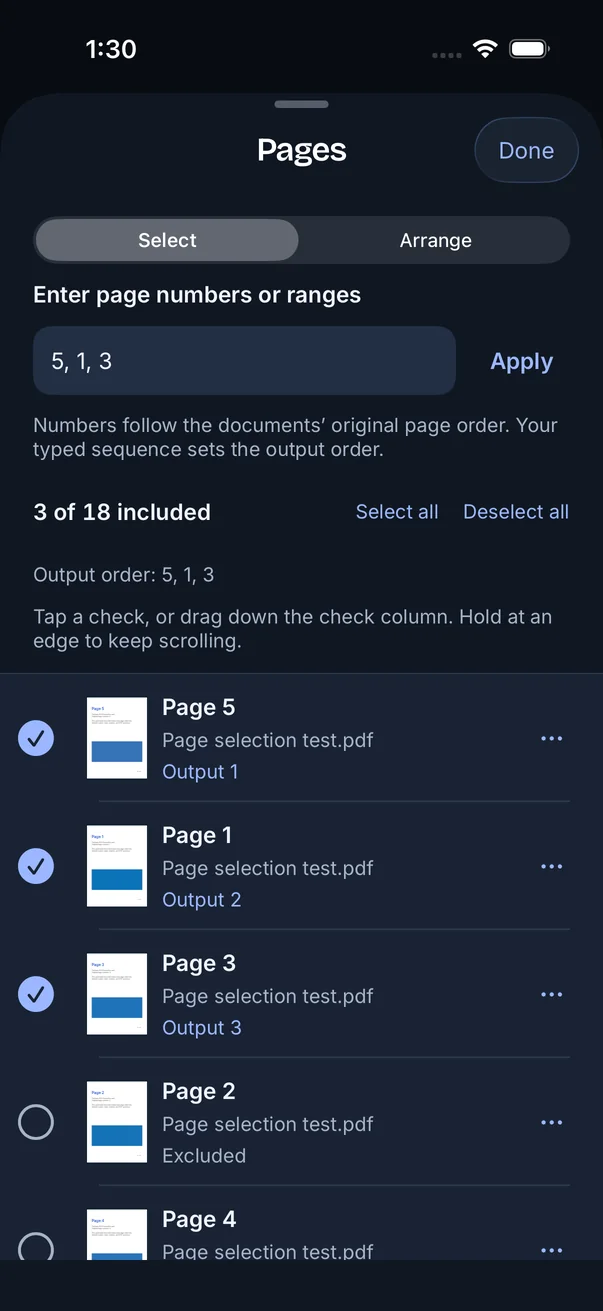
FileSway Pages screen in dark mode: the typed order 5, 1, 3 shows 3 of 18 pages included, with Page 5 as Output 1, Page 1 as Output 2 and Page 3 as Output 3.

Quick answer

Last updated

  • FileSway Pro creates a searchable PDF on your iPhone with on-device OCR.
  • Searchable means you can find and select text in a scanned PDF.
  • The free plan does not include searchable OCR, and Pro is a one-time $14.99 purchase in the U.S.
  • OCR can contain errors, so check names and numbers before you send the file.
  • Document processing does not upload your files to our servers, and OCR runs on your iPhone.

What OCR does

Pro Searchable PDF creation uses on-device OCR. The free plan does not include it.

OCR means optical character recognition. It reads the picture of the letters on a scanned page and adds text you can find and select. The page still looks like the scan. FileSway does not edit PDF text.

Keep readingShow less

FileSway Pro is a one-time $14.99 purchase in the U.S. There is no subscription. Apple sets the price, and it can vary by country or region. There is no account. Restore Purchases is available. Pricing puts Free and Pro side by side. FileSway shows what is included in Free and Pro before you convert.

OCR can contain errors. A blurred or faint word can come back as the wrong word. Check names and numbers before you send the file. The screen above is Pages, where a typed order such as 5, 1, 3 sets which pages are included. PDF pages explains that control. Searchable OCR is a separate Pro step.

Steps in FileSway Pro

Scans can come from document scan on a supported device, or from Photos or Files. Use an unlocked PDF. A photo of a page is not searchable text until OCR runs.

  1. Open FileSway and add the pages from Photos or Files. On a supported device you can also use document scan (see how to scan a document with iPhone).

  2. If you started from a photo, make the PDF first. One photo to one PDF is free. Photo to PDF is that step. A picture placed on a page is not text yet.

  3. Create the searchable PDF with FileSway Pro. OCR runs on your iPhone. The free plan does not include searchable OCR.

  4. Read the result, including names and numbers. OCR can contain errors. FileSway does not edit PDF text, so it will not rewrite a wrong word.

  5. Save to Files, share, or export a ZIP. Your original stays unchanged. If the file also has to meet a size cap, compress the PDF after you have checked the text.

Accuracy tips

The scan is what OCR reads. A cleaner page is easier to read. Check the words before you rely on them.

  • Use good light, without a dark shadow across the lines.
  • Keep the page flat. A curl or a fold hides letters.
  • Hold still until the type is in sharp focus.
  • After OCR, check names and numbers yourself. OCR can contain errors.

Searchable vs editable

Searchable means you can find a word and select the text in the PDF. FileSway does not edit PDF text, fill in forms, or sign the document.

The picture of the page stays what was scanned. The recognized text is a layer on top of that picture, and that layer can be wrong. If a name is wrong, look at the page image and type the right value where you are sending it. Your original file stays unchanged.

Built-in iOS options and their limits

Live Text can find and select text in a photo in recent iOS versions, when you need one line from a picture. Saving a searchable PDF is a different result. Apple may move these menus.

  1. Open the photo in Photos.

  2. Use Live Text when that version of iOS shows it, and select the text you need.

  3. Copy the text. The photo is still a photo, and you do not have a searchable PDF from this step.

01

When an app is better

  • You need a PDF you can search later. Live Text copies text from a photo and leaves you with the photo.
  • The source is a scan or an unlocked PDF, from document scan on a supported device or from Photos or Files.
  • You want the recognition to run on your iPhone. Searchable OCR is FileSway Pro.
  • You will check names and numbers, because OCR can contain errors.

Free & Pro

Built-in iOS vs FileSway Free vs FileSway Pro

$14.99Pro, one time
U.S. price · no subscription
Searchable OCR is Pro, a one-time $14.99 purchase in the U.S. Prices are set by Apple and can vary by country or region. Apple may move the built-in menus. OCR can contain errors. FileSway does not edit PDF text.
FeatureBuilt-in iOSFileSway FreeFileSway Pro
Searchable PDFFind and select text in the PDF. OCR can contain errors.Live Text can find text in a photo, in recent iOS versions. It does not make a searchable PDF.
On-device OCR for that PDFLive Text is not PDF OCR.
Edit the PDF textLive Text does not edit the PDF.
Add a scan, photo, or unlocked PDFPhotos, and the scan tools that version includesPhotos, Files, or document scan on supported devicesSame sources, then searchable OCR
File uploaded to FileSway for OCRNot part of Live TextNo searchable OCRNo. OCR runs on your iPhone.
PriceIncluded with iPhoneFree$14.99 once

Document processing does not upload your files to our servers.

Image conversion, PDF tools and OCR run on your iPhone. Cloud file providers, Apple purchases and restore, and links you choose to open can still use the internet.

On-device privacy

FAQ

Searchable PDF questions

Something else? Email support@cornerpostweb.com or visit Support.

What is a searchable PDF?

A searchable PDF lets you find and select text in a scan, and the page still looks like the scan. FileSway Pro adds that text with on-device OCR, which can contain errors, and FileSway does not edit PDF text.

Is OCR free in FileSway?

No. Searchable PDF creation using on-device OCR is part of FileSway Pro, a one-time $14.99 purchase in the U.S. (prices are set by Apple and can vary by country or region), and there is no subscription or account. The free plan is one input and one output per job, without searchable OCR, though a multi-page PDF can still produce more than one result file on the free plan. See Pricing.

Can I edit the text after OCR?

No. You can find and select text, and FileSway does not edit PDF text. Check the result, because OCR can contain errors, and the original stays unchanged.

Is my PDF uploaded for OCR?

No. OCR runs on your iPhone, and document processing does not upload your files to our servers. Cloud file providers, Apple purchases and restore, and links you choose to open can still use the internet. The current version has no advertising or analytics SDK, and there is no account.

How do I copy text from a PDF on iPhone?

After OCR in FileSway Pro, you can find and select text in the PDF. OCR can contain errors, so check the words before you rely on them.

FileSway app icon

Your files.
Ready to go.

FileSway is coming to the App Store. Convert, resize & compress photos and PDFs, right on your iPhone.