Files: Create PDF
In the Files app, select the images and use Create PDF when that action is listed. It is another built-in route in recent iOS versions, and it is not in the same place on every version. Apple may move these menus.
Turn one picture into a PDF for free. You can reorder pages or set a size cap on the PDF you make.
Last updated
Recent iOS versions can turn a photo into a PDF from the Print preview. You do not need FileSway for that one file. Apple may move these menus.
Open the photo in Photos.
Tap Share, then Print.
Pinch open the page preview.
Tap Share on the preview and save the PDF to Files, or send it on.
In the Files app, select the images and use Create PDF when that action is listed. It is another built-in route in recent iOS versions, and it is not in the same place on every version. Apple may move these menus.
FileSway makes a PDF on iPhone from the photos you add. One photo to one PDF is free. To make a PDF with Photos or Files, use the Print preview or Create PDF when those actions are listed. Apple may move these menus.
One photo to one PDF is free, and you do not need an account. Add the photo from Photos or Files.
To save a photo as a PDF, add one picture in FileSway and choose PDF. JPG, PNG, HEIC, TIFF and BMP can be the input, and the photo in Photos stays as it is.
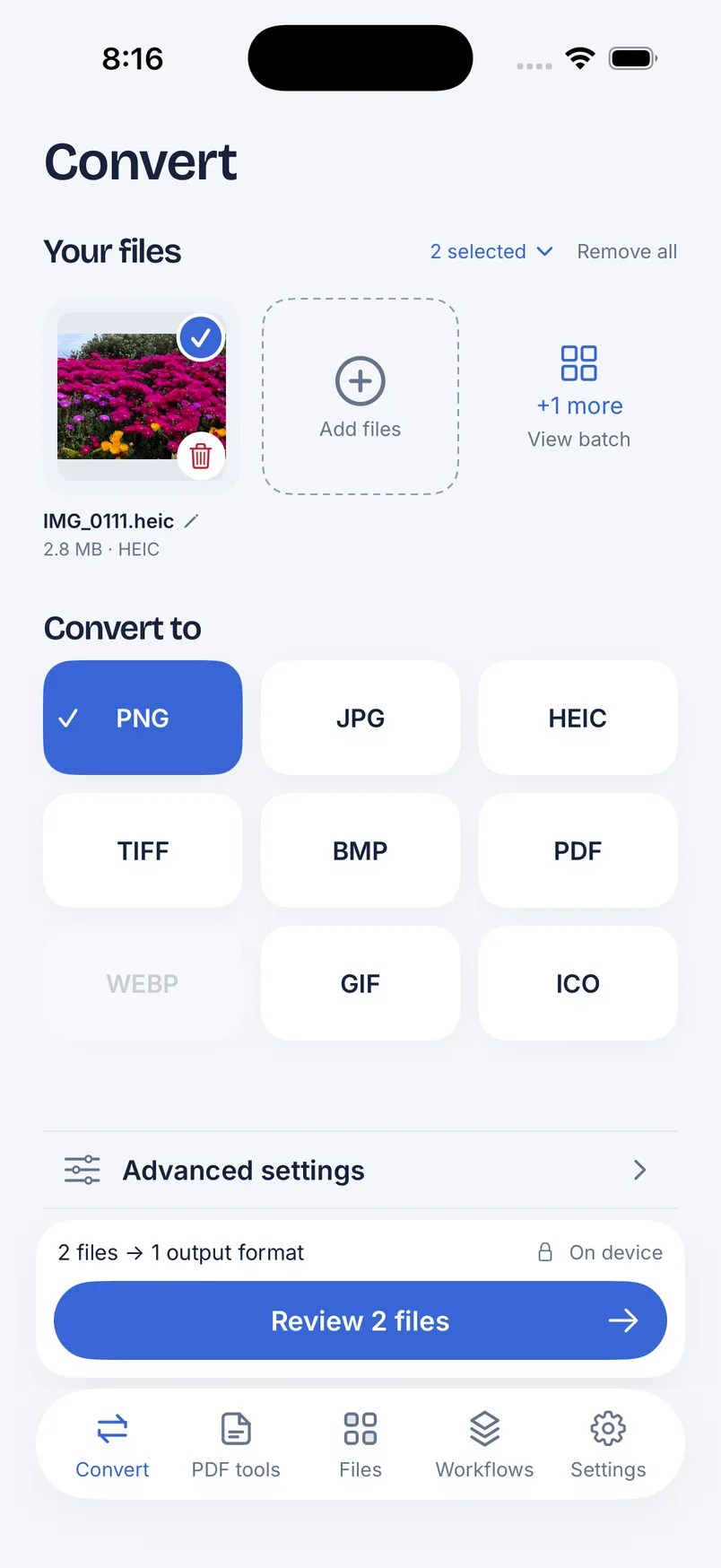
Open FileSway and add the photo from Photos or Files.
Under Convert to, choose PDF. One photo to one PDF is free.
Open Advanced settings if you want a size limit in KB or MB. Supported metadata stays unless you remove location, or broader metadata, yourself.
Review the file. If you set a limit, FileSway makes the file smaller only as needed. Your original stays unchanged.
Save to Photos, save to Files, or share the PDF.
To save pages of a PDF as pictures, use PDF to JPG.
In FileSway you can put more than one photo into a single PDF. See Pricing for what Free and Pro include. FileSway shows what is included before you convert.
Once the pages are in a PDF, you can select them and set the order by typing page numbers or ranges. That sequence is the output order. If the pages are already separate PDFs, use Merge PDFs.
A photo on a page is not text you can search. Searchable PDF runs OCR on your iPhone and needs FileSway Pro, a one-time $14.99 purchase in the U.S. Apple sets the price, and it can vary by country or region. There is no subscription. OCR can contain errors. Restore Purchases is available, and you do not need an account.
In PDF tools, compress or prepare the PDF for a size cap of 10, 15, 25, 35 or 50 MB, or a custom size. FileSway can split it into numbered parts if needed. You can preview the original next to the finished file. One PDF can still produce more than one result file on the free plan. Compression or splitting can affect forms, links and signatures.
A size cap describes the file. It does not mean a website or a form will accept the PDF. Compress a PDF covers that cap.
Free & Pro
| Feature | Built-in iOS | FileSway Free | FileSway Pro |
|---|---|---|---|
| One photo to one PDF | Print shortcut, in recent iOS | ||
| Several photos combined into one PDF | Print or Files, when that menu is listed | See Pricing for what Free and Pro include. | See Pricing for what Free and Pro include. |
| Searchable OCROCR can contain errors | Not part of the Print shortcut | ||
| Reorder pages by numbers or ranges | Not part of the Print shortcut | ||
| Size cap of 10, 15, 25, 35 or 50 MB, or customCompression or splitting can affect forms, links and signatures | Not part of the Print shortcut | ||
| More than one output format per job | Depends on the share destination | ||
| Price | Included with iPhone | Free | $14.99 once |
Document processing does not upload your files to our servers.
Image conversion, PDF tools and OCR run on your iPhone. Cloud file providers, Apple purchases and restore, and links you choose to open can still use the internet.
On-device privacyAdd the picture in FileSway from Photos or Files, choose PDF, then review and save or share. One picture to one PDF is free.
Add the photo in FileSway, choose PDF, and save the new file. You can also open the photo, tap Share, tap Print, pinch open the preview, and share the PDF. Apple may move these menus.
Open FileSway, add the photo, and choose PDF. One photo to one PDF is free, and the photo in Photos stays as it is.
FileSway creates a PDF from the photos you add, and one photo to one PDF is free. You can also use Print in Photos or Create PDF in Files when those menus are listed. Apple may move these menus.
Add the JPG in FileSway from Photos or Files and choose PDF. JPG, PNG, HEIC, TIFF, and BMP can all be the input, and one photo to one PDF is free.
Yes, add the photos in FileSway and put them in one PDF, or use Print or Create PDF in Files when those menus are listed. See Pricing for what Free and Pro include. Apple may move these menus.
Open the photo in Photos, tap Share, then Print, pinch open the preview, and save or share the PDF. In Files, use Create PDF when that action is listed. Those routes do not add searchable OCR, page order typed as numbers or ranges, or a size cap of 10, 15, 25, 35 or 50 MB, and Apple may move these menus.
Open PDF tools and compress the PDF for a cap of 10, 15, 25, 35 or 50 MB, or a custom size. FileSway can split it into numbered parts, and you can preview the original next to the finished file. Matching a size does not mean a website will accept the file, and compression or splitting can affect forms, links, and signatures.

FileSway is coming to the App Store. Convert, resize & compress photos and PDFs, right on your iPhone.