FileSway: Photo & PDF Tools · iPhone

Your files. Ready to go.

Convert, resize & compress photos and PDFs on your iPhone. Pick a format, fit the size limit, and check the result before you share.

Document processing does not upload your files to our servers.

How it works

Add it. Choose it. Check it.

  1. Add photos or PDFs

    Bring files in from Photos or Files. FileSway opens empty and waits for yours.

  2. Choose where they’re going

    Pick an output format, an upload destination or your own size limit, plus any size, crop or metadata changes.

  3. Review, then save or share

    Check what you’re about to make, convert, and save or share the finished file. Your original stays unchanged.

What it converts

Nine outputs, laid out like the app.

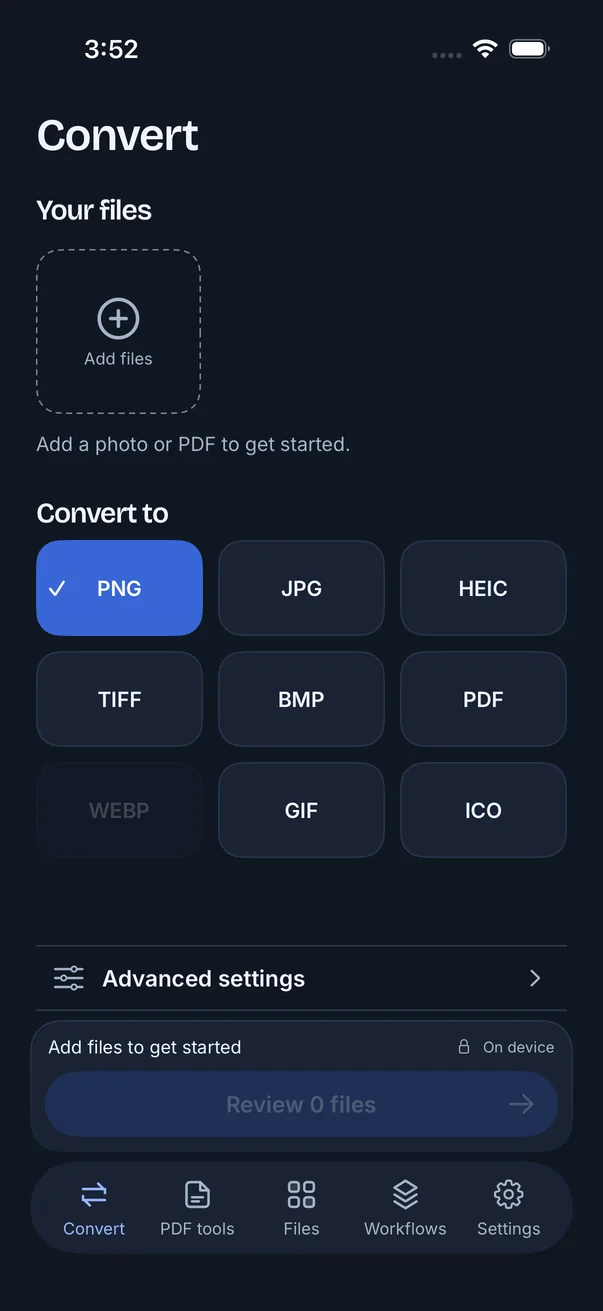
The Convert tab is a 3 × 3 grid. Here’s what each choice is good for, and what it won’t do.

PNG
Images with transparency
Lossless encoding of the rendered pixels. It can’t restore detail the source already lost.
JPG
Widely compatible photos
Smaller, lossy files. Transparent areas are flattened.
HEIC
Compact modern photos
Uses your iPhone’s encoder. Lossy, and transparency is flattened.
TIFF
Still-image interchange
Rendered pixels. Original TIFF layers and structures aren’t kept.
BMP
Bitmap compatibility
Files can be large, and transparency is flattened.
PDF
Images as documents
Turns images into a PDF. Page editing lives in the PDF tools tab.
WebP
Device dependent
Web-oriented images
Available when your iPhone has a WebP encoder.
GIF
A still GIF image
One frame, up to 256 colors. Not animation.
ICO
Small icon files
One icon, up to 256 pixels.

Common inputs include JPG, PNG, HEIC, TIFF, BMP and unlocked PDFs. Output availability depends on what your iPhone can encode.

One file to one format is free. Several files, or several formats in one job: Pro

Destinations & size limits

Tell it where the file is going.

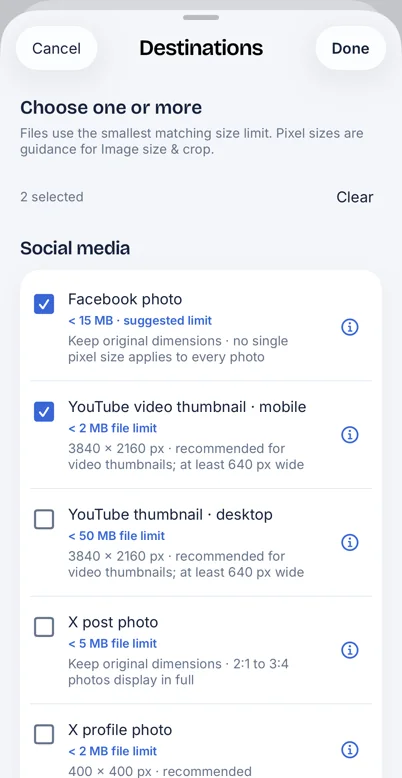
Choose one or more upload destinations and FileSway uses the smallest matching size limit. Or set your own limit in KB or MB.

Size limit for this file

Under 2 MB Smallest match: YouTube video thumbnail · mobile
Social media presets · choose one or more

    Preset names and limits as shown in FileSway. Platforms change their rules, so check the destination before you post.

    FileSway Destinations sheet: Choose one or more. Files use the smallest matching size limit. Facebook photo and YouTube video thumbnail mobile are checked, with limits of 15 MB and 2 MB.

    Set a limit and we’ll make the file smaller only as needed. Your original stays unchanged.

    From FileSway’s size settings

    Fine-tune

    The details, without the fine print.

    1. 01

      Image size & crop

      Set a width and height in pixels or keep the original proportions, crop to a shape, then rotate or flip.

    2. 02

      Metadata & privacy

      Supported metadata is kept by default. Remove location, or broader supported metadata, when you choose to.

    3. 03

      Name your files Pro for batches

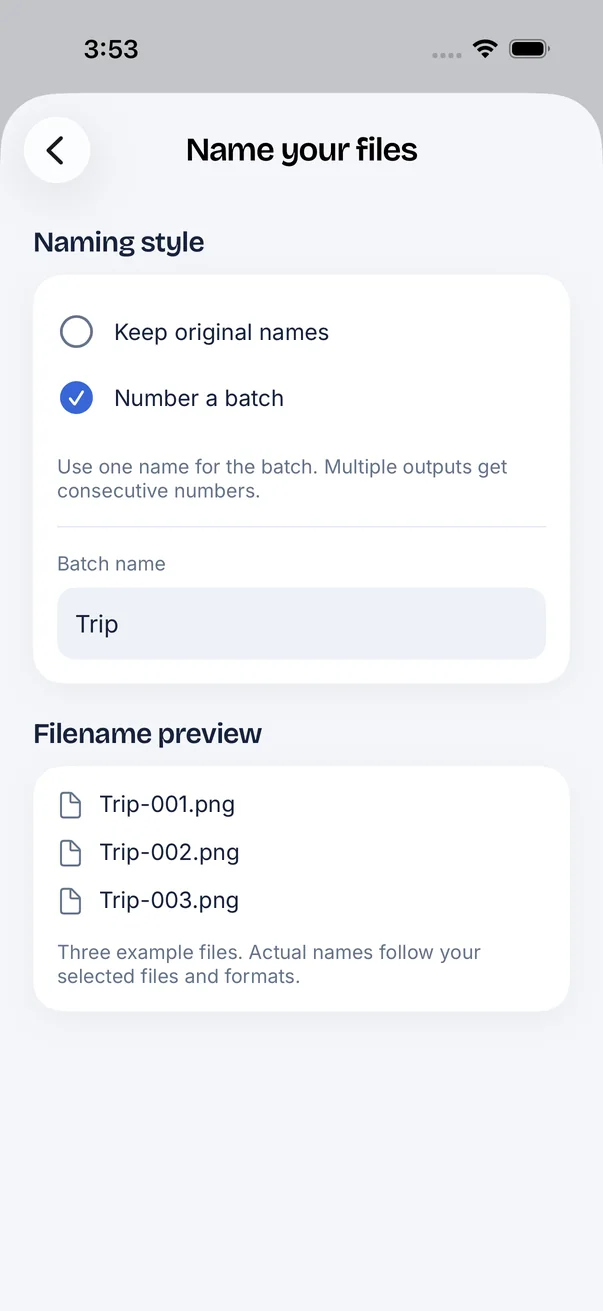
      Keep original names, or number a batch: Trip-001.png, Trip-002.png, Trip-003.png.

    4. 04

      Workflows

      After a conversion, save the settings as a workflow and run the same job again next time.

    FileSway Name your files screen: Number a batch is selected with the batch name Trip, and the filename preview lists Trip-001.png, Trip-002.png and Trip-003.png.

    PDF tools

    Keep just the pages you need.

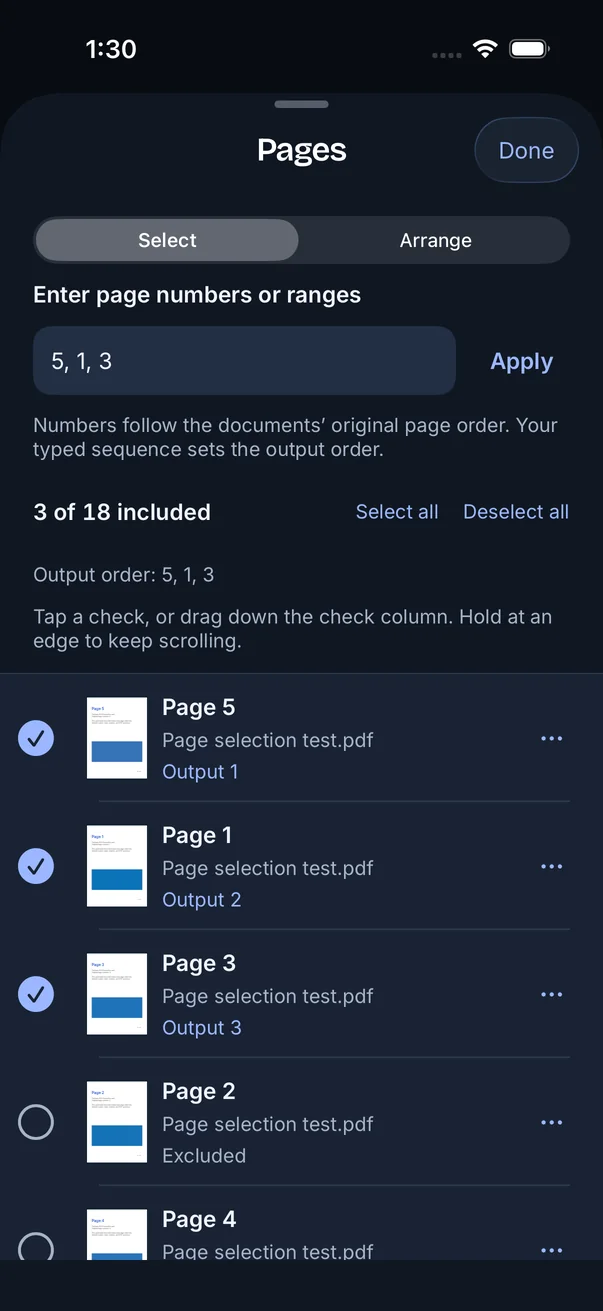
    Type page numbers or ranges, or tap and drag down the list. Pages export in the order you type them.

    For example: 5, 1, 3–7. This demo runs in your browser.

      • Select or arrange

        Select all, deselect all, or switch to Arrange and reorder with handles. Deselected pages stay visible in the list.

      • Prepare a PDF for a size cap

        Choose 10, 15, 25, 35 or 50 MB, or a custom size. Split into parts if needed, keep page order, and review the preparation before you export.

      • Searchable PDFs Pro

        Create searchable PDFs with on-device OCR.

      FileSway Pages screen in dark mode: the typed order 5, 1, 3 shows 3 of 18 pages included, with Page 5 as Output 1, Page 1 as Output 2 and Page 3 as Output 3.
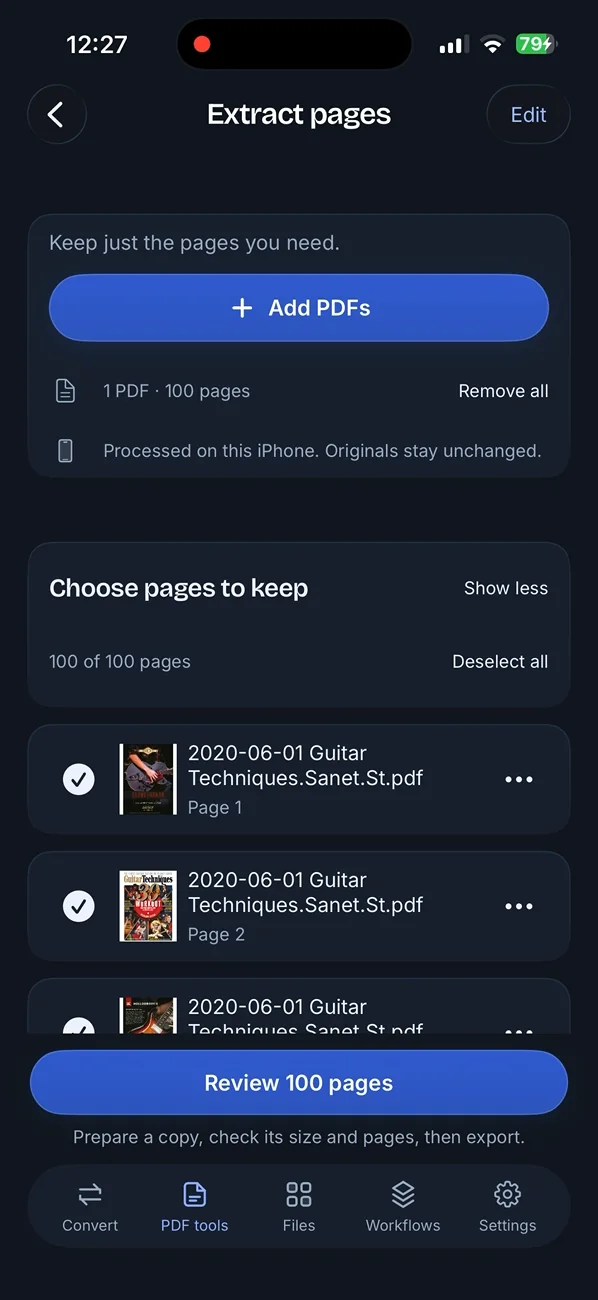
      FileSway Extract pages screen in dark mode: one 100-page PDF, processed on this iPhone with originals unchanged, and a list of pages to keep.

      File size is only one of the rules a destination may have, so check its other requirements too. Compressing or splitting can affect forms, links and signatures, and OCR can contain errors. Look over the finished pages before you send.

      Privacy

      Document processing does not upload your files to our servers.

      • On your iPhone

        Image conversion, PDF tools and OCR run on the device. Originals stay unchanged.

      • No account

        No sign-up and no login. Pro is a purchase through Apple, not a profile.

      • What can still go online

        Cloud file providers, Apple purchases and restore, and links you choose to open.

      Read the privacy policy

      Built for your settings

      Light, dark, and large text.

      FileSway Convert screen in dark mode, empty and ready for files, with the 3 by 3 format grid.
      Dark modeFollows your iPhone, or pick one.
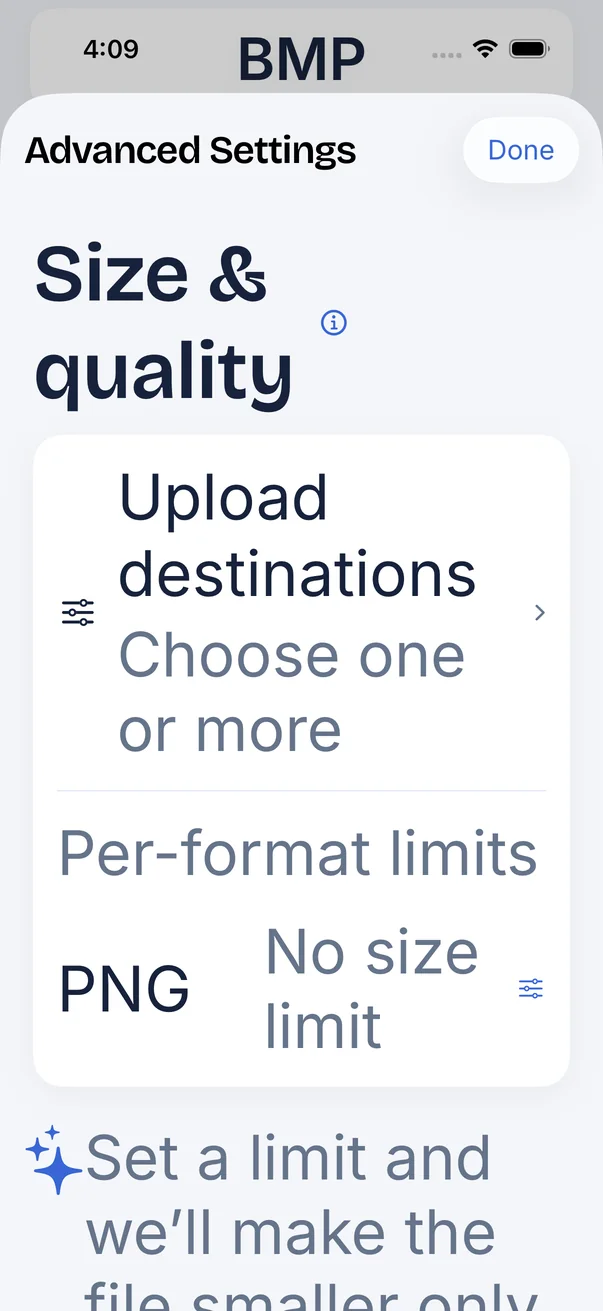
      FileSway Advanced Settings shown at a very large text size: Size and quality, Upload destinations, Per-format limits.
      Larger textLayouts reflow at big Dynamic Type sizes.
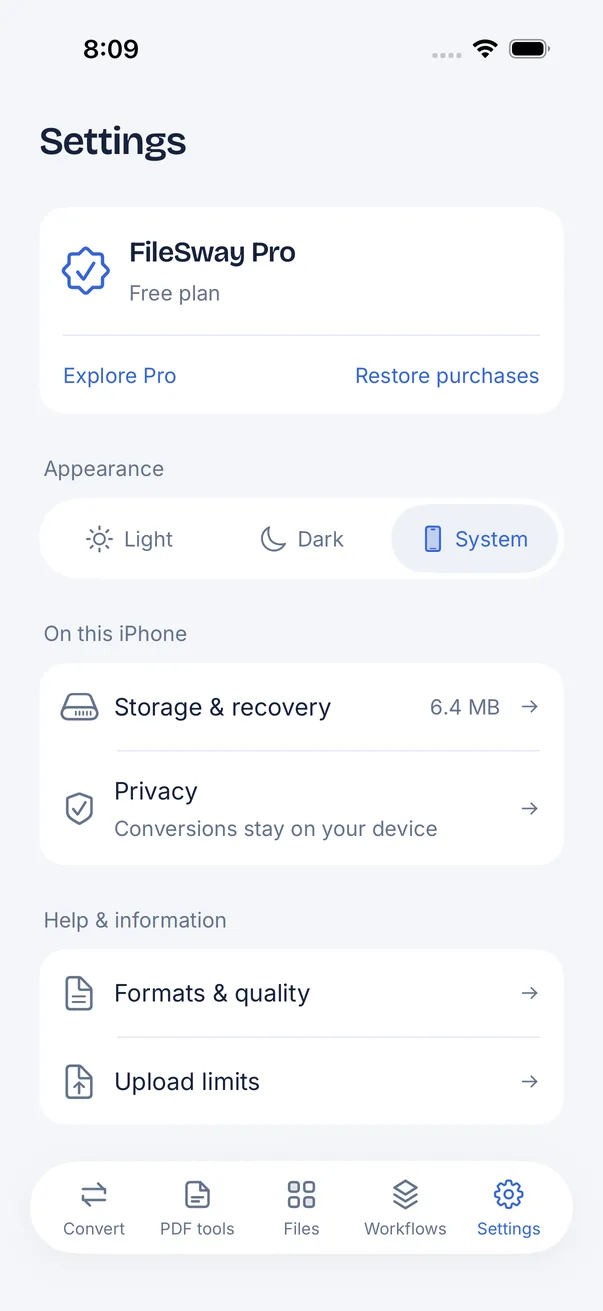
      FileSway Settings screen: FileSway Pro free plan, appearance choices Light, Dark and System, storage, privacy and help.
      Light, Dark or SystemReduced Motion is respected too.

      Free & Pro

      Free to start. Pro once, if you need it.

      One file to one format is free. FileSway Pro is a single purchase for bigger jobs. There is no subscription.

      FileSway Pro

      Batch conversion, more outputs and PDF OCR

      $9.99one-time · U.S. price

      FileSway Pro is a one-time, non-consumable purchase. It unlocks batch conversion, multiple output formats per job, and searchable PDF creation using on-device OCR. There is no subscription.

      • Convert batches of files
      • Create multiple formats in one job
      • Make PDFs searchable with on-device OCR
      • Restore purchases from the same screen

      No account or login. Prices are set by Apple and can vary by country or region.

      Completed files stay exportable without Pro. A multi-page PDF can still produce more than one result file on the free plan.
      FeatureFreePro
      PriceFree download$9.99 once
      Convert one file to one formatFormat, size limit and adjustments for that file
      Batch conversionSeveral files in one job
      Multiple output formats per job
      Searchable PDFsOn-device OCR
      SubscriptionNoneNone
      Account or loginNot neededNot needed

      FAQ

      Straight answers.

      Something else? Email support@cornerpostweb.com or visit Support.

      Do my files get uploaded to a server?

      Document processing does not upload your files to our servers. Image conversion, PDF tools and OCR run on your iPhone.

      Cloud file providers, Apple purchases and restore, and links you open can still use the internet.

      What’s free, and what does Pro add?

      Free covers a single input to a single output, without searchable OCR. FileSway Pro adds batch conversion, multiple output formats per job, and searchable PDFs using on-device OCR.

      Is Pro a subscription?

      No. FileSway Pro is a one-time, non-consumable purchase ($9.99 in the U.S.). Restore Purchases is on the same screen.

      Do I need an account?

      No. There’s no sign-up or login.

      Does a destination preset guarantee my upload is accepted?

      No. Presets are suggested size limits, and platforms change their rules. File size is only one requirement, so check the destination’s other rules and look over the finished file.

      Will converting to PNG improve quality?

      PNG keeps the rendered pixels without lossy compression, but it can’t recreate detail the source has already lost.

      Can FileSway convert video, audio or Office files?

      No. FileSway works with photos, still images and PDFs.

      When can I download it?

      FileSway is coming to the App Store. This site will link straight to the listing as soon as it’s live.

      Who makes FileSway?

      Corner Post Web. Reach us at support@cornerpostweb.com or cornerpostweb.com.

      FileSway app icon

      Your files.
      Ready to go.

      FileSway is coming to the App Store. Convert, resize & compress photos and PDFs, right on your iPhone.