

Scan a document with iPhone
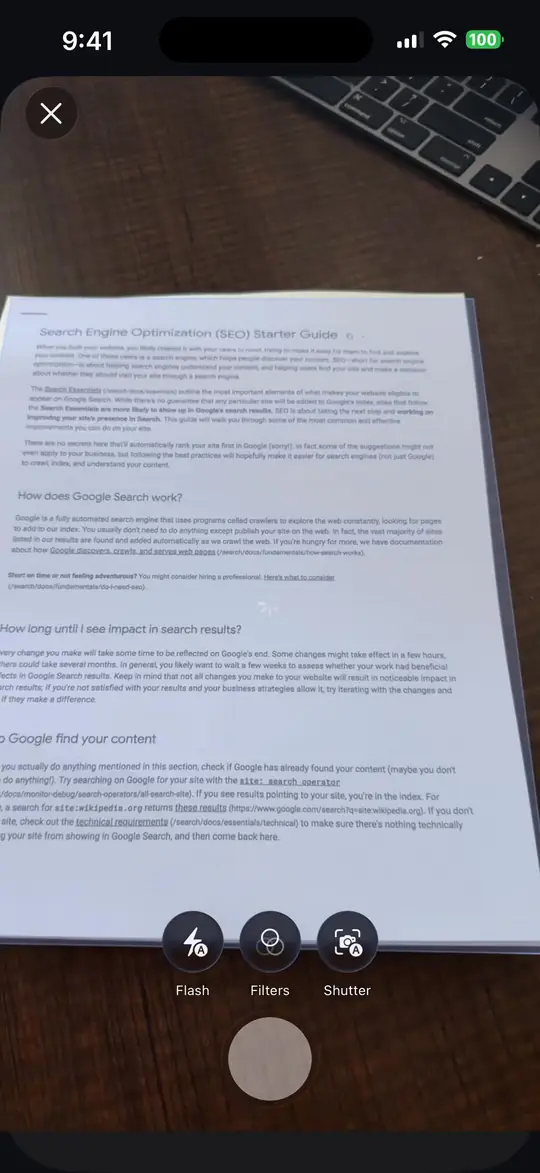
Hold a supported iPhone over the page. FileSway finds the edges, can capture the page automatically, and saves the scan as a PDF you can send, shrink or organize.
Document processing does not upload your files to our servers.
- 01Page in view
- 02Edges found
- 03Auto-capture
Quick answer
Last updated
- FileSway can scan a document on supported iPhone models.
- It finds the page edges and can capture the page on its own.
- The scan arrives as a PDF. Review, convert, then save to Files or share.
- PDF tools can compress the scan or keep only the pages you need.
- Searchable PDF OCR Pro runs on your iPhone. FileSway Pro is a one-time $14.99 purchase in the U.S.

Step by step
How to scan a document with iPhone in FileSway
Document scanning works on supported devices. You can also add pages you already have from Photos or Files. Each step below matches a moment in the recording.
-
Open FileSway
On the Convert screen, tap Scan document. Scanning works on supported devices. You can also add files from Photos or Files.
-
Scan the page
Hold your iPhone over the page. FileSway finds the page edges and can capture it automatically, or you can tap the shutter. Tap the checkmark when you're done. Even light and a flat page keep the text sharp.
-
Check the PDF
The scan appears under Your files and Convert to switches to PDF. If the file has a size cap, set a file-size limit or compress the PDF afterward.
-
Review and save
Tap Review, then Convert and verify, then save to Files or share. Your original stays unchanged.
The recording is trimmed for length: pauses between taps were removed and the status bar was tidied. Every tap you see is a real tap, in the original order. In this example the scan came out at 1.8 MB; your file size will depend on the page.
Scan or photo?
Why scan a document instead of taking a photo
A photo of a page captures the desk, the shadows and the angle along with the paper. A scan is about the page itself.
-
Cropped to the page edges
The scanner looks for the four edges of the paper, so the result is the page, not the table around it. That is the blue outline in the recording.
-
Saved as a PDF document
When you scan a document with iPhone in FileSway, it lands as a PDF under Your files, the format many forms and offices ask for when you send paperwork.
-
Ready to shrink and send
Because the scan is already a PDF inside FileSway, you can compress it, keep only certain pages, or set a file-size limit before it goes anywhere.
Next
What you can do after the scan
The scan is a regular PDF in FileSway, so the PDF tools work on it right away.
-
Compress the PDF
Shrink it when an email or upload form has a size cap.
-
Keep or reorder pages
Type page numbers, such as 5, 1, 3, and export them in that order.
-
Merge PDFs
Join the scan with another file. Several files in one job need FileSway Pro.
Pro -
Make it searchable
On-device OCR lets you find and select text later. OCR can contain errors.
Pro -
Save or share
Save to Files, share, or export a ZIP.
See every PDF tool on the FileSway home page.

Better scans
Tips for a cleaner scan
Edge detection works best when the page stands out from what's behind it.
- Use even light, without a dark shadow across the lines.
- Keep the page flat. A curl or a fold hides letters.
- Put the page on a surface that contrasts with the paper, so the edges are easy to find.
- Hold still until the type is in sharp focus.
- If you plan to run OCR with FileSway Pro, check names and numbers afterward. OCR can contain errors.
Options
Built-in iPhone scanning and when an app helps
Notes and Files
Recent iOS versions include a document scanner in the Notes app and the Files app. Apple may move these menus between versions. For a quick one-off scan, the built-in scanner can be enough.
When FileSway is the better fit
- The scan has to fit a file-size limit, so you need to compress it.
- You want to keep, reorder or split pages before you send the PDF.
- You want a searchable PDF made on your iPhone. That is FileSway Pro. Pro
- You also convert photos: HEIC to JPG or PNG, photo to PDF, resize, compress, or remove photo metadata, in the same app.
Free vs Pro
FileSway Free vs FileSway Pro for scanned documents
$14.99once, in the U.S.
FileSway Pro is a one-time purchase with no subscription and no account. Apple sets the price, and it can vary by country or region. Restore Purchases is available. FileSway shows what is included in Free and Pro before you convert. More about Pro
| Feature | Free | Pro |
|---|---|---|
| One input, one output per job | ||
| Batch Several files in one job | ||
| Multiple outputs per job | ||
| Searchable PDF OCR On-device. OCR can contain errors. | ||
| Price | Free | $14.99 once |
Privacy
Document processing does not upload your files to our servers.
Image conversion, PDF tools and OCR run on your iPhone. Cloud file providers, Apple purchases and restore, and links you choose to open can still use the internet. There is no account.
Can I scan a document with my iPhone?
Yes. FileSway can scan documents on supported devices. The Notes and Files apps on iPhone also include a document scanner in recent iOS versions, and Apple may move those menus. FileSway adds PDF tools, compression, file-size limits and searchable PDF OCR with FileSway Pro.
How do I scan a document to PDF on iPhone?
Open FileSway and tap Scan document on the Convert screen (supported devices). FileSway finds the page edges and captures the page, then you tap the checkmark. The scan arrives as a PDF. Tap Review, then Convert and verify, and save to Files or share. Your original stays unchanged.
Do I have to press the shutter?
Not always. When FileSway finds the page edges it can capture the page automatically. You can also tap the shutter yourself, then tap the checkmark when you're done.
Can I make a scanned PDF searchable?
Yes, with FileSway Pro. Searchable PDF creation uses on-device OCR, so you can find and select text in the scan. OCR can contain errors, so check names and numbers. FileSway does not edit PDF text.
Is my scan uploaded?
Document processing does not upload your files to our servers. Cloud file providers, Apple purchases and restore, and links you choose to open can still use the internet. There is no account.
My scanned PDF is too big to send. What can I do?
Use FileSway's PDF tools to compress the PDF, or keep only the pages you need. The free plan is one input and one output per job. Batch and multiple outputs are FileSway Pro.
What does FileSway Pro cost?
FileSway Pro is a one-time $14.99 purchase in the U.S., with no subscription and no account. Apple sets the price, and it can vary by country or region. Pro unlocks batch, multiple outputs and searchable PDF OCR. Restore Purchases is available.


Your files.
Ready to go.
FileSway is coming to the App Store. Convert, resize & compress photos and PDFs, right on your iPhone.