
FileSway Coming to the App Store

Split a PDF or delete pages on iPhone

Keep the pages you need, in the order you type, or split the PDF into parts.

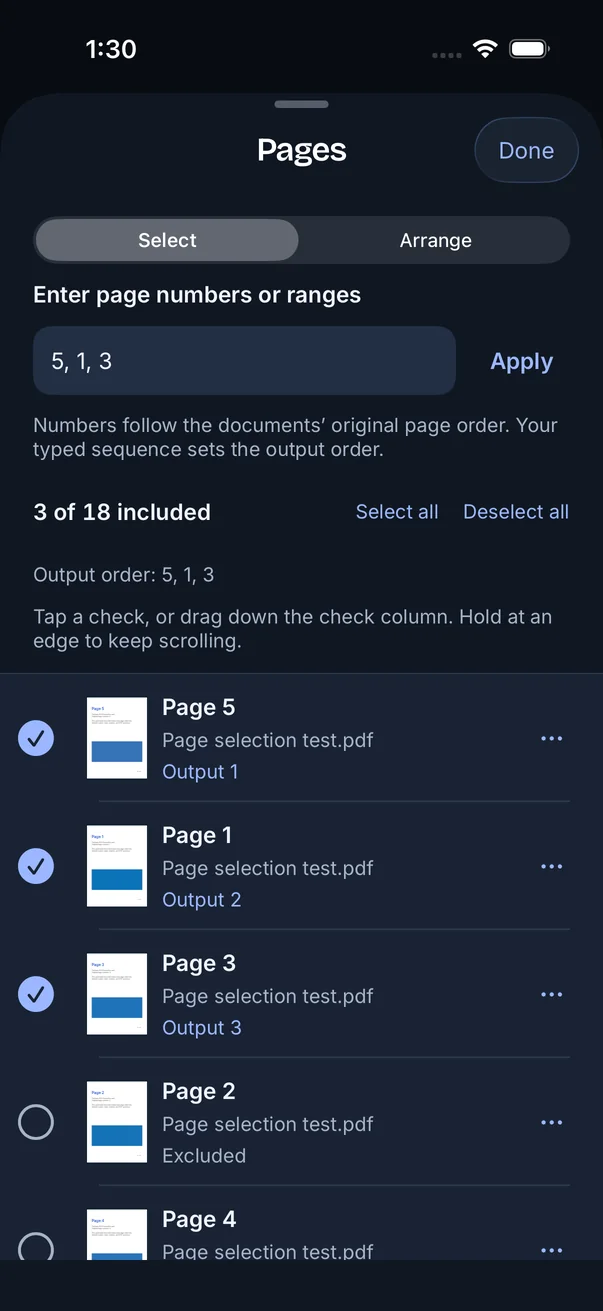
FileSway Pages screen in dark mode: the typed order 5, 1, 3 shows 3 of 18 pages included, with Page 5 as Output 1, Page 1 as Output 2 and Page 3 as Output 3.

Quick answer

Last updated

  • FileSway splits a PDF, deletes pages, or reorders them on your iPhone by exporting the pages you keep.
  • Type page numbers or ranges, such as 5, 1, 3-7, and FileSway exports them in that order.
  • You can tap and drag to select pages, or switch to Arrange and reorder with the handles.
  • For a size cap of 10, 15, 25, 35 or 50 MB, or a custom size, FileSway can split the PDF into numbered parts.
  • One unlocked PDF is one input, a multi-page PDF can still produce more than one result file on the free plan, and the original stays unchanged.
  • PDF tools run on your iPhone, and document processing does not upload your files to our servers.

Extract pages

Add one unlocked PDF from Files. Type the pages you want, or tap and drag to select them. The order you type is the order FileSway exports. One PDF is one input. There is no account.

  1. Open FileSway and add the unlocked PDF from Files.

  2. Type page numbers or ranges, such as 5, 1, 3-7. Pages export in that order. You can also tap and drag to select.

  3. Use select all or deselect all when you need them. Deselected pages stay visible in the list.

  4. Switch to Arrange and reorder with the handles when you want to drag.

  5. Save to Files, share, or export. Your original stays unchanged.

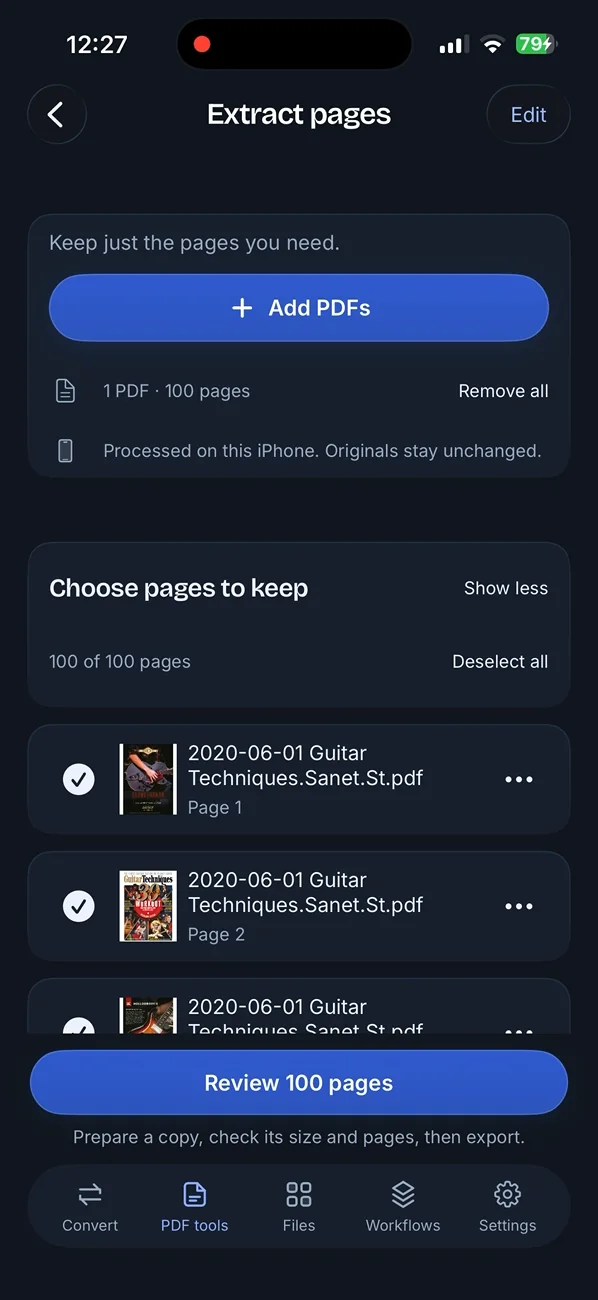
FileSway Extract pages screen in dark mode: one 100-page PDF, processed on this iPhone with originals unchanged, and a list of pages to keep.
This capture is Extract pages for one 100-page PDF. Originals stay unchanged. You keep the pages you select.

Good to know

01

Reorder pages

Two controls set the order. Typing 5, 1, 3 exports Page 5, then Page 1, then Page 3. Arrange mode uses handles when you want to drag. Deselected pages stay in the list and are left out of the export. To join separate PDFs first, use Merge PDFs. FileSway shows what is included in Free and Pro before you convert.

02

Delete pages

Deleting pages works by exporting only the pages you keep. Deselect the ones you do not want, or type only the numbers to keep. Select all and deselect all are on the same screen. Deselected pages stay visible so you can check the list. The original PDF stays unchanged.

03

Split into parts by size

Prepare the PDF for a size cap of 10, 15, 25, 35 or 50 MB, or a custom size. If one file cannot fit, FileSway can split it into numbered parts and keep page order. A multi-page PDF can still produce more than one result file on the free plan. Compress a PDF.

Compressing or splitting can affect forms, links and signatures. Preview the original against the finished pages before you send. FileSway does not promise a destination will accept the file.

Try it: an 18-page demo

This is the same 18-page sample as on the FileSway home page. It runs in your browser and does not open your files. Type a list such as 5, 1, 3-7. The order you type is the output order on the Pages screen.

For example: 5, 1, 3-7. This demo runs in your browser.

    Built-in iOS options and their limits

    The Files app can open a PDF so you can read it and share the file you already have. Some recent iOS versions also list page tools, and those controls are not the same on every version. Apple may move these menus.

    1. Open the PDF in the Files app.

    2. Use the page tools that version lists, if you only need a small change.

    3. Share or save the file from there. There is no field for a size cap.

    01

    When an app is better

    • You want pages exported in an order you type, such as 5, 1, 3-7.
    • You want select all, deselect all, or Arrange handles.
    • You want numbered parts for a size cap of 10, 15, 25, 35 or 50 MB, or a custom size.
    • You want the original PDF left unchanged.
    • The PDF has forms, links or signatures to check after a split.

    Free & Pro

    Built-in iOS vs FileSway Free vs FileSway Pro

    $14.99Pro, one time
    U.S. price · no subscription
    One unlocked PDF is one input. A multi-page PDF can still produce more than one result file on the free plan. Pro is $14.99 once in the U.S. Apple may move the built-in menus.
    FeatureBuilt-in iOSFileSway FreeFileSway Pro
    Type page numbers or rangesFor example 5, 1, 3-7. That order is the output order.No field for that typed list
    Tap and drag, select all, deselect allPage tools vary by iOS version
    Arrange with handlesPage tools vary by iOS version
    Split into numbered parts for a size cap10, 15, 25, 35 or 50 MB, or a custom size. Page order is kept.No size-cap control in Files
    Preview original vs finishedNot part of sharing the file
    Searchable textOn-device OCR. OCR can contain errors.
    PriceIncluded with iPhoneFree$14.99 once

    Document processing does not upload your files to our servers.

    PDF tools run on your iPhone. Cloud file providers, Apple purchases and restore, and links you choose to open can still use the internet.

    On-device privacy

    FAQ

    PDF page questions

    Something else? Email support@cornerpostweb.com or visit Support.

    How do I delete pages from a PDF on iPhone?

    Deselect the pages you do not want, or type only the numbers to keep, and FileSway exports a new PDF. Select all and deselect all are on the same screen, deselected pages stay visible, and the original stays unchanged.

    How do I extract pages from a PDF on iPhone?

    Add the unlocked PDF and type the pages in the order you want, such as 5, 1, 3-7. FileSway exports them in that order. You can also tap and drag to select, and the original stays unchanged.

    How do I separate PDF pages on iPhone?

    Type the page numbers or ranges to keep, such as 5, 1, 3-7, and FileSway exports those pages as a new PDF in that order. To make several files from one PDF, set a size cap and split into numbered parts.

    How do I split a PDF into multiple files on iPhone?

    Set a size cap of 10, 15, 25, 35 or 50 MB, or a custom size, and FileSway splits the PDF into numbered parts if one file cannot fit. Page order is kept, a multi-page PDF can still produce more than one result file on the free plan, and compressing or splitting can affect forms, links and signatures.

    How do I reorder PDF pages?

    Type the new order, such as 5, 1, 3, or switch to Arrange and reorder with the handles. The typed order is the output order, and deselected pages stay visible and are left out of the export.

    Does the original PDF change?

    No. FileSway exports a new file and leaves the original unchanged. Deleting a page here means leaving it out of that export.

    FileSway app icon

    Your files.
    Ready to go.

    FileSway is coming to the App Store. Convert, resize & compress photos and PDFs, right on your iPhone.