
FileSway Coming to the App Store

Convert a PDF to JPG on iPhone

Save pages of an unlocked PDF as JPG or PNG images on your iPhone.

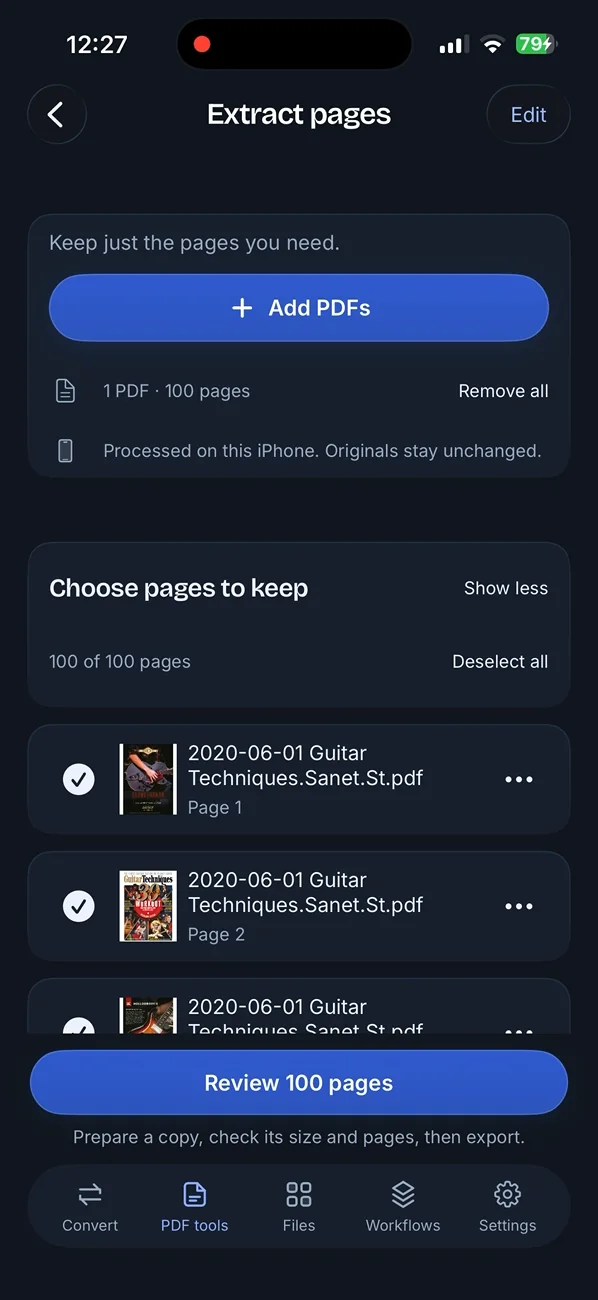
FileSway Extract pages screen in dark mode: one 100-page PDF, processed on this iPhone with originals unchanged, and a list of pages to keep.

Quick answer

Last updated

  • FileSway converts pages of an unlocked PDF to JPG or PNG on your iPhone.
  • One format per job is free, and a multi-page PDF can still produce more than one result file on the free plan.
  • You can set a size limit from 100 KB to 50 MB, or a width and height in pixels, in the same step.
  • Save the images to Photos or Files, share them, or export a ZIP, and the original PDF stays unchanged.
  • Several PDFs in one job, or more than one format in the same job, need FileSway Pro, a one-time $14.99 purchase in the U.S.
  • Password-protected PDFs need to be unlocked first, and document processing does not upload your files to our servers.

Convert PDF pages to JPG

Add one unlocked PDF. Choose JPG, PNG, or another still-image format. One format per job is free. A multi-page PDF can still produce more than one result file on the free plan. There is no account.

  1. Open FileSway and add the unlocked PDF from Files.

  2. Choose the pages to keep. Type numbers or ranges, or tap and drag. The order you type is the output order.

  3. Choose JPG, or PNG if you need transparency. Other still-image formats are on the same screen. WebP is available when your iPhone has a WebP encoder. One format per job is free.

  4. Set a size limit in KB or MB, or a width and height in pixels, if you need either. If you set a limit, FileSway makes the file smaller only as needed.

  5. Save to Photos, save to Files, share, or export a ZIP. Your original stays unchanged.

FileSway Extract pages screen in dark mode: one 100-page PDF, processed on this iPhone with originals unchanged, and a list of pages to keep.
This capture is Extract pages for one 100-page PDF. Originals stay unchanged. JPG or PNG is the format you choose for the pages you keep.

Save a PDF as a photo on iPhone

To save a PDF as a photo or a picture, convert the pages you keep to JPG or PNG, then use Save to Photos. Saving a PDF to Photos is that same step: FileSway writes the image files, and Photos stores them. The original PDF stays unchanged.

A screenshot is one picture of the screen, so it does not export each page as its own image. Choose the pages first, then pick JPG or PNG. One format per job is free, and a multi-page PDF can still produce more than one result file on the free plan.

JPG vs PNG for documents

Use JPG when the picture has to open widely. Use PNG when the page needs transparency. The other still-image outputs are HEIC, TIFF, BMP, WebP, GIF and ICO. WebP is available when your iPhone has a WebP encoder. GIF is one frame, up to 256 colors, and it is not an animation. ICO is one icon, up to 256 pixels. Convert to another format.

Notes from the FileSway format list. A PNG cannot restore detail the page already lost.
FeatureJPGPNG
Good forWidely compatible photos.Images with transparency.
What you getSmaller, lossy files. Transparent areas are flattened.Lossless encoding of the rendered pixels. It cannot restore detail the source already lost.
The original PDFUnchanged.Unchanged.

More than one format in the same job needs FileSway Pro. A photo saved as a document is Photo to PDF.

Image quality and size

Image presets run from 100 KB to 50 MB, or you type a limit in KB or MB. If you set a limit, FileSway makes the file smaller only as needed. Your original stays unchanged. You can also set a width and height in pixels, or keep proportions. Fewer pixels can drop detail. FileSway does not promise a quality level.

JPG is lossy, so fine print can get harder to read. PNG encodes the rendered pixels without that lossy step, and it cannot put back detail the page already lost. Preview before you send.

Locked PDFs

FileSway opens unlocked PDFs. A password-protected PDF needs to be unlocked first. Other inputs are JPG, PNG, HEIC, TIFF and BMP. You can add files from Photos or Files.

Built-in iOS options and their limits

The Files app can open an unlocked PDF and share that PDF. A screenshot is one picture of the screen, so it does not export each page. Shortcuts may convert a file on some iOS versions, when the action is available and you build the shortcut. Apple may move these menus.

  1. Open the PDF in the Files app.

  2. Tap Share to send the PDF itself.

  3. There is no size limit or pixel size on that share. A screenshot is one picture of the screen.

01

When an app is better

  • You want JPG or PNG, or another still-image format, from the pages you keep.
  • You want a size limit, or a width and height in pixels, in the same step.
  • The PDF has more than one page. A multi-page PDF can still produce more than one result file on the free plan.
  • The PDF has to be unlocked before FileSway can open it.

Free & Pro

Built-in iOS vs FileSway Free vs FileSway Pro

$14.99Pro, one time
U.S. price · no subscription
A multi-page PDF can still produce more than one result file on the free plan. Pro is $14.99 once in the U.S. Apple may move the built-in menus. Password-protected PDFs need to be unlocked first.
FeatureBuilt-in iOSFileSway FreeFileSway Pro
Unlocked PDF to JPG or PNGOnly if Share or Shortcuts offers it
More than one result file from a multi-page PDFNot part of sharing the PDF
Other still-image formatsHEIC, TIFF, BMP, WebP, GIF, ICO. WebP is device dependent.Depends on the destinationOne format per jobMore than one format per job
Size limit in the same stepPresets run from 100 KB to 50 MB, or a custom KB or MB size.Not part of sharing the PDF
Width and height in pixelsNot part of sharing the PDF
Several PDFs converted in one jobNo Files control for a batch
PriceIncluded with iPhoneFree$14.99 once

Document processing does not upload your files to our servers.

Image conversion and PDF tools run on your iPhone. Cloud file providers, Apple purchases and restore, and links you choose to open can still use the internet.

On-device privacy

FAQ

PDF to JPG questions

Something else? Email support@cornerpostweb.com or visit Support.

How do I turn a PDF into a JPG on iPhone?

Add the unlocked PDF in FileSway, choose the pages to keep, then choose JPG. Save to Photos or Files, share, or export a ZIP. You can set a size limit or a width and height in pixels in the same step, and the original stays unchanged.

How do I save a PDF as a photo on iPhone?

Convert the pages you keep to JPG or PNG in FileSway, then save to Photos. The original PDF stays unchanged, and a password-protected PDF needs to be unlocked first.

How do I save a PDF to Photos on iPhone?

Choose JPG or PNG for the pages you keep, then save to Photos. One format per job is free, and a multi-page PDF can still produce more than one result file on the free plan.

Can I convert all pages at once?

Yes. One unlocked PDF can produce an image for each page you keep, including more than one result file on the free plan. Several PDFs in one job, or more than one format in the same job, need FileSway Pro, a one-time $14.99 purchase in the U.S., and there is no subscription.

Should I pick JPG or PNG?

Choose JPG for a smaller, lossy file, with transparent areas flattened. Choose PNG to keep transparency and to encode the rendered pixels without that lossy step. PNG cannot restore detail the source already lost.

Why can't I convert my PDF?

FileSway opens unlocked PDFs. A password-protected PDF needs to be unlocked first, and the other inputs are JPG, PNG, HEIC, TIFF and BMP.

FileSway app icon

Your files.
Ready to go.

FileSway is coming to the App Store. Convert, resize & compress photos and PDFs, right on your iPhone.