
FileSway Coming to the App Store

How to convert HEIC to JPG on iPhone

Convert one HEIC photo to JPG for free, or convert a batch with Pro. JPG and JPEG are the same format.

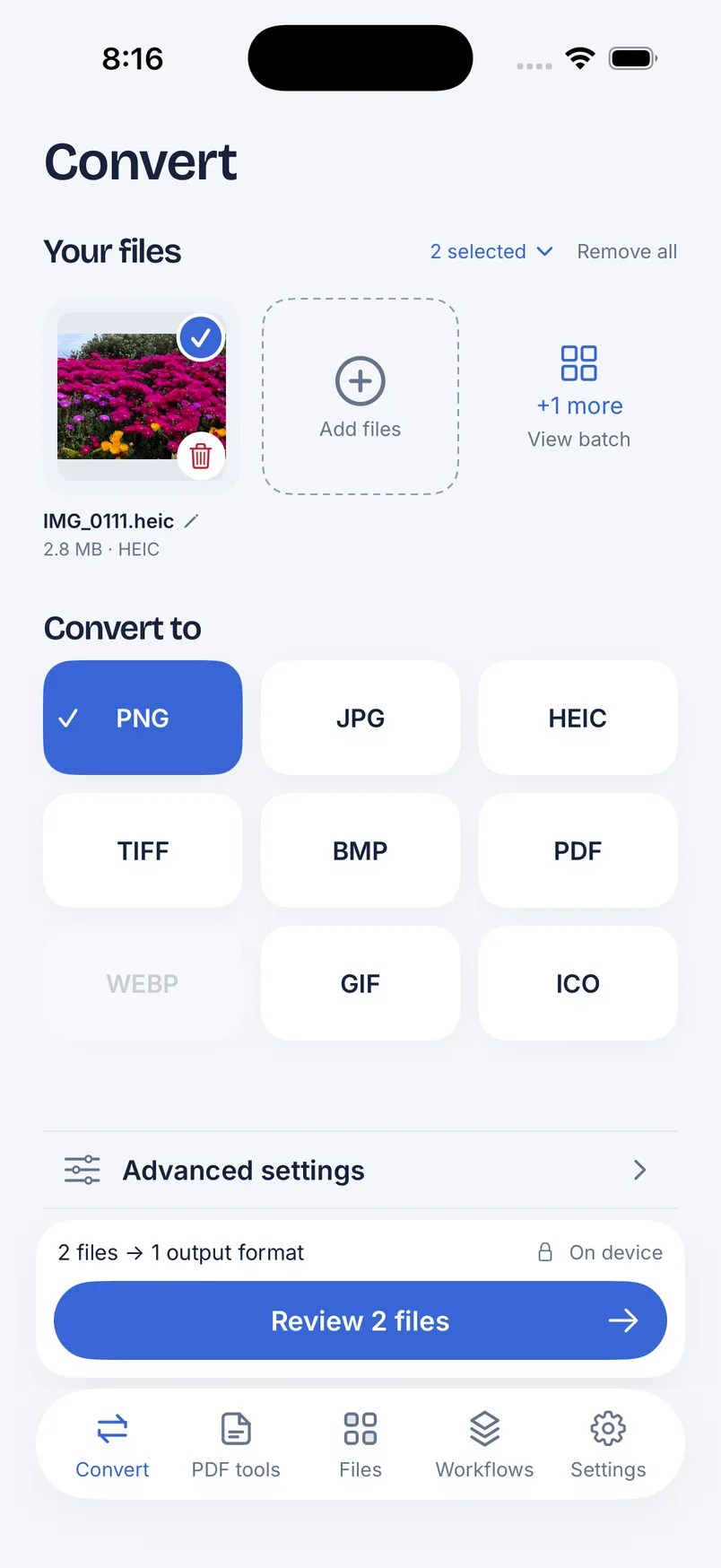
FileSway Convert screen with a HEIC photo selected, PNG highlighted in the format grid next to JPG, and the review bar marked on device.

Quick answer

Last updated

  • FileSway converts a HEIC photo to JPG on your iPhone, and one photo to one format is free.
  • JPG and JPEG are the same format, so FileSway saves an iPhone photo as JPEG with the same steps as a JPG.
  • Several HEIC photos in one job need FileSway Pro, a one-time $14.99 purchase in the U.S.
  • FileSway can set a size limit from 100 KB to 50 MB, or remove location, in the same conversion.
  • Settings › Camera › Formats › Most Compatible saves new camera photos as JPG and leaves photos already on the iPhone as HEIC.
  • Image conversion runs on your iPhone, and document processing does not upload your files to our servers.

Good to know

01

Why your iPhone photos are HEIC

The iPhone camera saves photos as HEIC. HEIC is a compact, lossy photo format for the library on the phone. Many websites, Windows PCs, and forms still ask for JPG. JPEG is the same format, so a request to convert an iPhone photo to JPEG is a request for JPG.

Changing the camera to Most Compatible only affects photos you take after that. Pictures already in Photos stay HEIC until you convert each file. What is a HEIC file?

02

Convert iPhone photos to JPG or JPEG

iPhone camera photos are HEIC by default. JPG and JPEG are the same format in FileSway, so converting an iPhone photo to JPG, converting it to JPEG, or saving an iPhone photo as JPEG follows the steps for one photo.

Add the HEIC file in FileSway, choose JPG, review, and save or share. One photo to one format is free. Screenshots and other PNGs are covered on PNG to JPG on iPhone.

Convert one photo to JPEG (free)

One photo to one format is free, and you do not need an account. To change a photo's format on iPhone, add that HEIC file and choose JPG.

  1. Open FileSway and add the HEIC photo from Photos or Files.

  2. Choose JPG under Convert to. JPEG is the same format. Choose PNG instead if the image needs transparency. PNG is still one format, and it is still free.

  3. Open Advanced settings if you want a size limit in KB or MB, or if you want location data removed. Supported metadata stays unless you remove it.

  4. Review the file. If you set a limit, FileSway makes the file smaller only as needed. Your original stays unchanged.

  5. Save to Photos, save to Files, or share the JPG.

Presets run from 100 KB to 50 MB, or you can type your own limit. See compress a photo to a size limit and remove photo metadata on iPhone. Other outputs are listed in convert an image to another format.

FileSway Convert screen listing a HEIC photo under Your files. The format grid shows PNG, JPG, HEIC, TIFF, BMP, PDF, GIF and ICO, with WebP dimmed.
JPG sits in the format grid. This capture has PNG selected. Several files in one job is Pro.

Convert a batch Pro

To convert many HEIC photos to JPG, add them and convert them in one job. Several files in one job need FileSway Pro. Pro is a one-time $14.99 in-app purchase in the U.S. There is no subscription. Apple sets the price, and it can vary by country or region. Restore Purchases is on the same screen. There is no account or login.

You still pick the format, such as JPG. Pro can also make more than one format from the job. Name the batch and FileSway numbers the files, such as Trip-001.jpg and Trip-002.jpg. Then save to Photos, save to Files, share, or export a ZIP. FileSway Pro pricing spells out Free and Pro. FileSway shows what is included before you convert.

HEIC vs JPG vs PNG

Send a JPG when someone else has to open the photo. Use PNG when the image needs transparency. Leave the file as HEIC when it only has to stay on your iPhone.

Size and transparency follow FileSway's format list. "Smaller" describes JPG next to lossless PNG, not a fixed percentage.
FeatureHEICJPGPNG
SizeCompact, lossy camera file.Smaller, lossy files.Lossless encoding of the rendered pixels. It cannot restore detail the source already lost.
TransparencyFlattened.Flattened.Kept.
CompatibilityiPhone camera default. Many websites, Windows PCs, and forms do not accept it.Widely compatible photos. JPEG is the same format.Widely used, including where the image needs transparency.

Other ways to get JPG on iPhone, and their limits

Most Compatible changes photos you have not taken yet. It does not convert photos already in the library. Apple may move these menus.

01

Settings: Most Compatible

  1. Open Settings.

  2. Tap Camera, then Formats.

  3. Choose Most Compatible.

New camera photos are saved as JPG. Photos already on the iPhone stay HEIC.

02

Files, Photos, and the share sheet

From Photos you can share a picture, and some destinations ask for a format before they take the file. The Files app can store a copy you export. What arrives depends on the iOS version and the app you share to. If the file is still HEIC, that destination did not convert it.

03

Shortcuts

Shortcuts can convert images on some iOS versions, when the action is available and you build the shortcut. It is separate from the camera setting, and a size limit or location removal is easy to leave out. FileSway keeps format, size limit and location removal in one review step.

04

When an app is better

  • The photo is already in your library. Most Compatible does not convert it.
  • You want several photos in one job. That batch is FileSway Pro.
  • You need a size limit, or location removed, in the same step as the JPG.
  • You are sending the file to a Windows PC, a website, or a form that rejects HEIC.

Free & Pro

Built-in iOS vs FileSway Free vs FileSway Pro

$14.99Pro, one time
U.S. price · no subscription
Free is one input and one output per job. Pro is $14.99 once in the U.S. Apple may move the built-in menus.
FeatureBuilt-in iOSFileSway FreeFileSway Pro
One photo already in your library, to JPGOnly if Share or Shortcuts offers it
New camera photos saved as JPGSettings › Camera › Formats › Most CompatibleYesiPhone settingiPhone setting
Several photos in one jobNo Photos control for a batch
More than one format per jobDepends on the destination
Size limit in the same stepNot part of Most Compatible
Remove location in the same stepSeparate share option
PriceIncluded with iPhoneFree$14.99 once

Sending HEIC to Windows users

A Windows PC may not open a HEIC photo until that person installs extra support, and many mail and form uploads reject the file. Convert it to JPG before you send it. If the message also has a size cap, set that limit in the same job. Presets run from 100 KB to 50 MB, or you can type your own. Compress a photo to a size limit. One photo to one JPG is free.

Document processing does not upload your files to our servers.

Image conversion runs on your iPhone. Cloud file providers, Apple purchases and restore, and links you choose to open can still use the internet.

On-device privacy

FAQ

HEIC to JPG questions

Something else? Email support@cornerpostweb.com or visit Support.

How do I convert HEIC to JPG on iPhone?

Add the HEIC photo in FileSway from Photos or Files, choose JPG, then review and save or share. One photo to one format is free.

How do I convert iPhone photos to JPEG?

Choose JPG in FileSway. JPEG and JPG are the same format, so the steps match converting one HEIC photo.

How do I change HEIC to JPG on iPhone for free?

Add one HEIC photo in FileSway and choose JPG. One photo to one format is free, and you do not need an account.

Why are my iPhone photos HEIC?

The iPhone camera saves photos as HEIC by default. It is a compact, lossy format, and photos already in your library stay HEIC until you convert them.

How do I convert many HEIC photos at once?

Several files in one job need FileSway Pro, a one-time $14.99 purchase in the U.S. There is no subscription, and the free plan converts one photo to one format per job.

Does converting HEIC to JPG lose quality?

JPG is lossy, so the new file can drop some detail, and it cannot restore detail the HEIC already lost. Transparent areas are flattened, so choose PNG if you need transparency. The original file stays unchanged.

How do I stop my iPhone from taking HEIC photos?

Open Settings, tap Camera, then Formats, and choose Most Compatible. New camera photos are saved as JPG, and photos already on the iPhone stay HEIC until you convert them. Apple may move this menu.

FileSway app icon

Your files.
Ready to go.

FileSway is coming to the App Store. Convert, resize & compress photos and PDFs, right on your iPhone.