Shortcuts
Shortcuts can resize an image on some iOS versions, when that action is available and you build the shortcut. A file-size limit is a separate step, and it is easy to leave out. Apple may move these menus.
Set a width and height in pixels, or a KB or MB limit, on your iPhone. One photo is free.
Last updated
Pixels are the width and height of the picture. A file-size limit is how many KB or MB the copy may use. You can set either one. If you set a limit, FileSway makes the file smaller only as needed. Your original stays unchanged.
| Feature | Pixels | File size |
|---|---|---|
| What you set | Width and height in pixels. You can keep proportions. | A limit in KB or MB, or a destination preset. |
| What changes | The dimensions of the copy. | The file is made smaller only as needed. Pixels change only if you also resize. |
| The original | Unchanged. | Unchanged. |
FileSway can downsize pictures on iPhone in two ways: a smaller width and height, or a smaller file. The same controls make a picture smaller or change the photo size. The original stays unchanged, and one photo is free.
To make a picture smaller as a file, set a KB or MB limit in FileSway. Presets run from 100 KB to 50 MB. When the file size is the goal, see compress a photo and size limits. In Photos, changing the frame is a crop, and recent iOS versions do not offer a field for an exact pixel size. Apple may move these menus.
One photo is free, and you do not need an account. Add it from Photos or Files.
Open FileSway and add the photo from Photos or Files.
Open Advanced settings. Set the width and height in pixels, and keep proportions if the photo should not be stretched.
Crop to a shape, or rotate or flip, if the frame needs it. Those controls are in the same adjustments.
If you also need a file size, set a limit in KB or MB, or choose a destination. Presets span 100 KB to 50 MB.
Review the copy. If you set a limit, FileSway makes the file smaller only as needed. Your original stays unchanged. Then save to Photos, save to Files, or share.
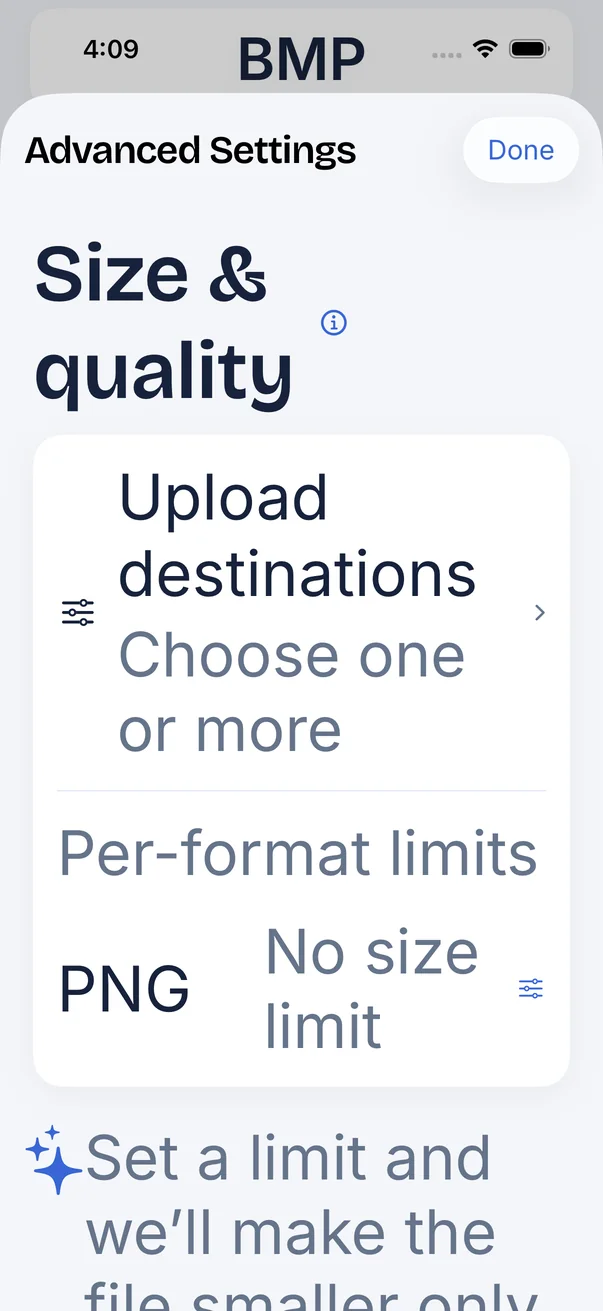
The image at the top of this page is Advanced settings at a very large text size: Size and quality, Upload destinations, and Per-format limits. In that capture the PNG row shows no size limit. You can still choose a destination or type a KB or MB cap. Compress a photo is the task when you only need a smaller file. The same caps are on size limits. If the format is the problem, convert the image.
There is no single best pixel size for a profile picture. Use the width and height you were asked for, and keep proportions if the photo should not be stretched. Destination presets show pixel sizes as guidance for image size and crop, and a site can change its own rules.
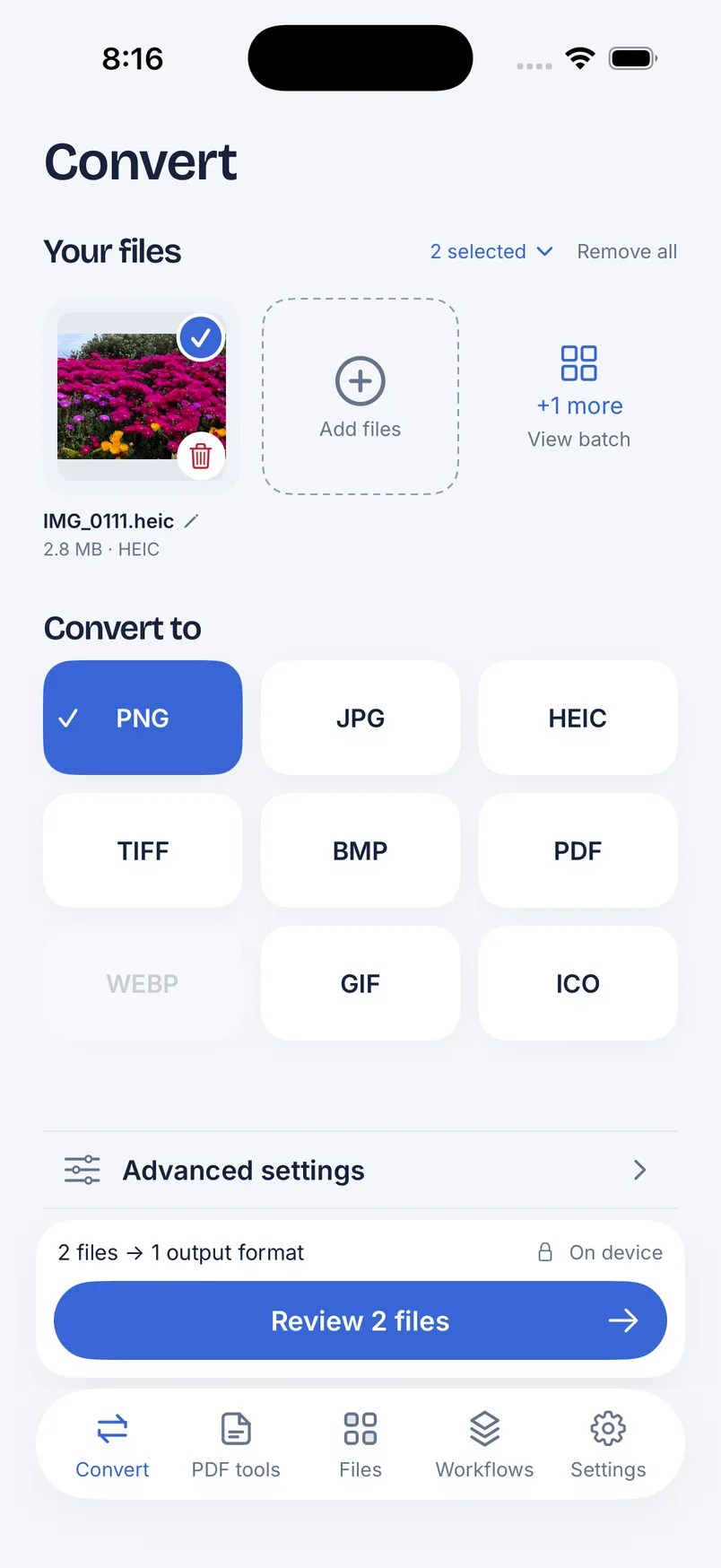
Several photos in one job, with the same settings, need FileSway Pro. Pro is a one-time $14.99 in-app purchase in the U.S. There is no subscription. Apple sets the price, and it can vary by country or region. Restore Purchases is on the same screen. There is no account or login.
Name the batch and FileSway numbers the files. Then save to Photos, save to Files, share, or export a ZIP. You can save those settings as a workflow and use them again. FileSway Pro pricing spells out Free and Pro.
Resizing sets the pixel width and height. Keeping proportions scales the photo without stretching it, and the whole picture stays in frame. Cropping cuts the frame to a shape, so part of the picture is left out. Rotate and flip turn the picture. They are separate adjustments, and you can use them in the same panel.
A crop does not by itself meet a KB or MB target. If you were given a file size, set that limit too. Compress a photo to a size limit.
In recent iOS versions, Photos can crop and rotate a photo. It does not offer a field for an exact pixel width and height, or for a target file size. Apple may move these menus.
Open the photo in Photos.
Tap Edit.
Use the crop control to change the frame, or rotate the photo.
Save the edit. This does not set a pixel count or a file size.
Shortcuts can resize an image on some iOS versions, when that action is available and you build the shortcut. A file-size limit is a separate step, and it is easy to leave out. Apple may move these menus.
Free & Pro
| Feature | Built-in iOS | FileSway Free | FileSway Pro |
|---|---|---|---|
| Exact width and height in pixels | No pixel field in Photos Edit | ||
| Keep proportions | No pixel field. Crop changes the frame. | ||
| Target file size | No KB or MB field in Photos | ||
| Crop, rotate or flip | Crop and rotate in Edit | ||
| One photo | Yes | ||
| Several photos in one job | No Photos control for a batch | ||
| Numbered names for a batch | Not a Photos control | ||
| Price | Included with iPhone | Free | $14.99 once |
Document processing does not upload your files to our servers.
Image conversion runs on your iPhone. Cloud file providers, Apple purchases and restore, and links you choose to open can still use the internet.
On-device privacyAdd the photo in FileSway and set the width and height in pixels. You can keep proportions, and one photo is free.
Set a smaller width and height in FileSway, or set a KB or MB limit if you need a smaller file. The original stays unchanged, and one photo is free.
For a smaller file, set a KB or MB limit in FileSway. For a smaller picture on screen, set a lower width and height in pixels. Presets for a file-size limit run from 100 KB to 50 MB.
In FileSway, set the pixel width and height, or a file-size limit. Photos can crop the frame, and recent iOS versions do not offer a field for an exact pixel size. Apple may move these menus.
Set the width and height and keep proportions. The whole picture stays in frame, and only the pixel dimensions of the copy change. Cropping is a separate control when you want to cut the frame.
Yes. Several photos in one job need FileSway Pro, a one-time $14.99 purchase in the U.S., and there is no subscription. The free plan resizes one photo per job, and you do not need an account.
Changing the pixel size resamples the photo, so a much smaller image has less detail. A larger pixel size does not add detail the original never had. The original stays unchanged, and FileSway does not promise a quality score.

FileSway is coming to the App Store. Convert, resize & compress photos and PDFs, right on your iPhone.