FileSway Coming to the App Store

Remove photo metadata and location on iPhone

Remove location, or broader supported metadata, from a copy. The original stays in Photos.

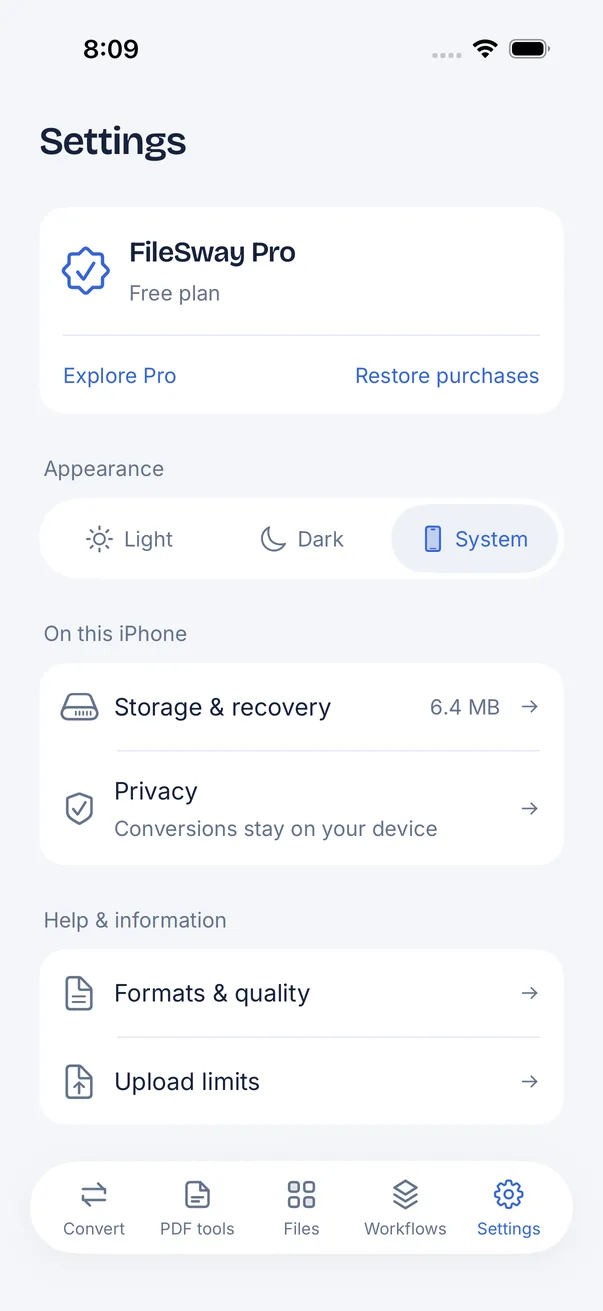
FileSway Settings screen: FileSway Pro free plan with Restore purchases, appearance Light, Dark or System, Storage and recovery, Privacy: Conversions stay on your device, Formats and quality, Upload limits.

Quick answer

Last updated

  • An iPhone photo can carry location (GPS) and other metadata, such as camera details and time.
  • In FileSway, supported metadata stays unless you choose to remove location, or broader supported metadata.
  • One photo is free, and several photos in one job need FileSway Pro, a one-time $14.99 purchase in the U.S. with no subscription.
  • FileSway saves a new copy and leaves the original photo unchanged.
  • A Photos share can leave location off, and Settings can stop the Camera from storing location on new photos, though Apple may move these menus.
  • Document processing does not upload the photo to our servers, and the work runs on your iPhone.

What metadata is in an iPhone photo

An iPhone photo can carry location (GPS) and other metadata such as camera details and time. Those details ride in the file. They are not the picture. FileSway keeps supported metadata by default. You can remove location, or broader supported metadata, when you choose to. Supported metadata is the metadata FileSway can remove. It is not a promise that every field is gone.

Supported metadata is kept unless you remove it. This is not a list of every field a photo might contain.
FeatureWhat it can includeWhat FileSway does
LocationGPS coordinates, when the photo has them.Kept unless you choose to remove location.
Camera details and timeCamera details and the time, when the file has them.Part of supported metadata. Kept by default. Broader removal is a separate choice, and it still means supported metadata.
The pictureThe pixels.The cleaned copy is a new file. Your original stays unchanged.

How to check photo metadata on iPhone

In Photos, open the photo and swipe up to show the info panel. You can also look for Info. The panel can show a location when the photo has one. Apple may move these menus.

Photos Info does not list every field a file can carry. To see what a cleaned copy shows, open that copy, not the original still in your library.

Built-in iOS options

iOS can leave location off a share, or stop the Camera from storing location on new photos. Neither one rewrites photos already in your library into saved clean files. Apple may move these menus.

01

Share sheet: Options, Location

  1. Open the photo in Photos.

  2. Tap Share, then Options, if Options is listed.

  3. Turn Location off for that share, if the switch is there.

  4. Finish the share. This applies to that send. It does not by itself give you a file to upload somewhere else.

02

Turn off location for new photos

  1. Open Settings.

  2. Open Privacy & Security, then Location Services. Apple may move these menus.

  3. Open Camera, and turn location off for new photos if that choice is there.

  4. Photos already in the library keep the location they have.

03

When an app is better

  • You need a file you can save, not only a share with location left off.
  • You want broader supported metadata removed, not only location.
  • You want the original left unchanged and a separate copy.
  • You want several photos in one job. That batch is FileSway Pro.

Remove location with FileSway

One photo is free, and you do not need an account. The Settings screen shows FileSway Pro on the free plan, Restore Purchases, appearance (Light, Dark or System), Storage and recovery, and Privacy: Conversions stay on your device. Removing location is a choice on the copy. It does not edit the original in Photos.

  1. Open FileSway and add the photo from Photos or Files.

  2. Open Advanced settings and choose to remove location. Other supported metadata stays if that is all you change.

  3. Review the copy. Your original stays unchanged.

  4. Save to Photos, save to Files, or share. One photo is free.

FileSway Settings screen: FileSway Pro free plan with Restore purchases, appearance Light, Dark or System, Storage and recovery, Privacy: Conversions stay on your device, Formats and quality, Upload limits.
Settings lists the free plan, Restore Purchases, appearance, storage and privacy. Location removal is on the copy you make.

Remove all supported metadata

Choose the broader removal when location is not the only field you care about. This removes supported metadata. It does not promise that every metadata field is gone, and it does not make the photo anonymous. If the copy you upload still has location, that location is in the file the site receives.

The cleaned copy is a new file. The original stays unchanged. Several photos in one job need FileSway Pro, a one-time $14.99 purchase in the U.S., not a subscription. Apple sets the price, and it can vary by country or region. Restore Purchases is on the same screen. There is no account or login.

You can do this in the same job as a format change or a size limit. Convert HEIC to JPG. Compress a photo. On-device privacy explains what is not uploaded.

Check that it worked

Open the copy you saved and look at its info panel. If you removed location, you want that location gone from the copy. Apple may move this menu.

A short info panel is not proof that every metadata field was removed. FileSway’s control covers supported metadata. If you need a field Photos does not show, check the copy in a viewer you trust before you upload it.

Free & Pro

Built-in iOS vs FileSway Free vs FileSway Pro

$14.99Pro, one time
U.S. price · no subscription
Free is one photo per job. Pro is $14.99 once in the U.S. Supported metadata is not every field a file might contain. Apple may move the built-in menus.
FeatureBuilt-in iOSFileSway FreeFileSway Pro
Remove location on a copy you keepShare Options can leave location off for that share
Broader supported metadata, when you chooseNot the location switch
Supported metadata kept by defaultThe photo keeps what it has
Original left unchangedA share does not replace the library photo
Several photos in one jobNo Photos control for a batch
Stop new photos from storing locationCamera location settingYesiPhone settingiPhone setting
PriceIncluded with iPhoneFree$14.99 once

Document processing does not upload your files to our servers.

Image conversion runs on your iPhone. Cloud file providers, Apple purchases and restore, and links you choose to open can still use the internet.

On-device privacy

FAQ

Metadata questions

Something else? Email support@cornerpostweb.com or visit Support.

How do I remove metadata from photos on iPhone?

Add the photo in FileSway, choose to remove location or broader supported metadata, and save the copy. One photo is free, and the original stays unchanged.

How do I check photo metadata on iPhone?

In Photos, open the photo and swipe up to show the info panel, or look for Info. The panel can show a location when the photo has one. Apple may move these menus.

How do I take location off photos on iPhone?

Add the photo in FileSway and choose to remove location, then save the copy. The original stays unchanged, and one photo is free. For a single share, Photos may offer Options, then Location, which does not clean photos already in your library.

How do I turn off metadata on iPhone photos?

There is no single switch that strips every metadata field from photos you already have. For new photos, you can turn off Camera location in Settings under Privacy & Security, then Location Services, then Camera (Apple may move these menus). For a photo already saved, FileSway can remove location, or broader supported metadata, on a copy.

Does iPhone remove metadata when I share a photo?

Not as a rule. A share can offer to leave out location, but other metadata can still go with the photo, and Apple may move the Options menu. FileSway keeps supported metadata unless you choose to remove location, or broader supported metadata.

What is EXIF data?

EXIF is a common place for camera details, time, and sometimes location, stored inside the photo file. FileSway’s control is supported metadata. Removing it is not a promise that every field someone could look for is gone.

Can I remove metadata from several photos at once?

Several photos in one job need FileSway Pro, a one-time $14.99 purchase in the U.S., and there is no subscription. The free plan is one photo per job. Restore Purchases is on the same screen, and you do not need an account.

FileSway app icon

Your files.
Ready to go.

FileSway is coming to the App Store. Convert, resize & compress photos and PDFs, right on your iPhone.